

GPT Image 2
Free GPT Image 2 Model Online
Free online AI image tool GPT Image 2: Fix garbled text, yellowing and distortion in one go. Get neat text, orderly layouts and uniform visuals within seconds.
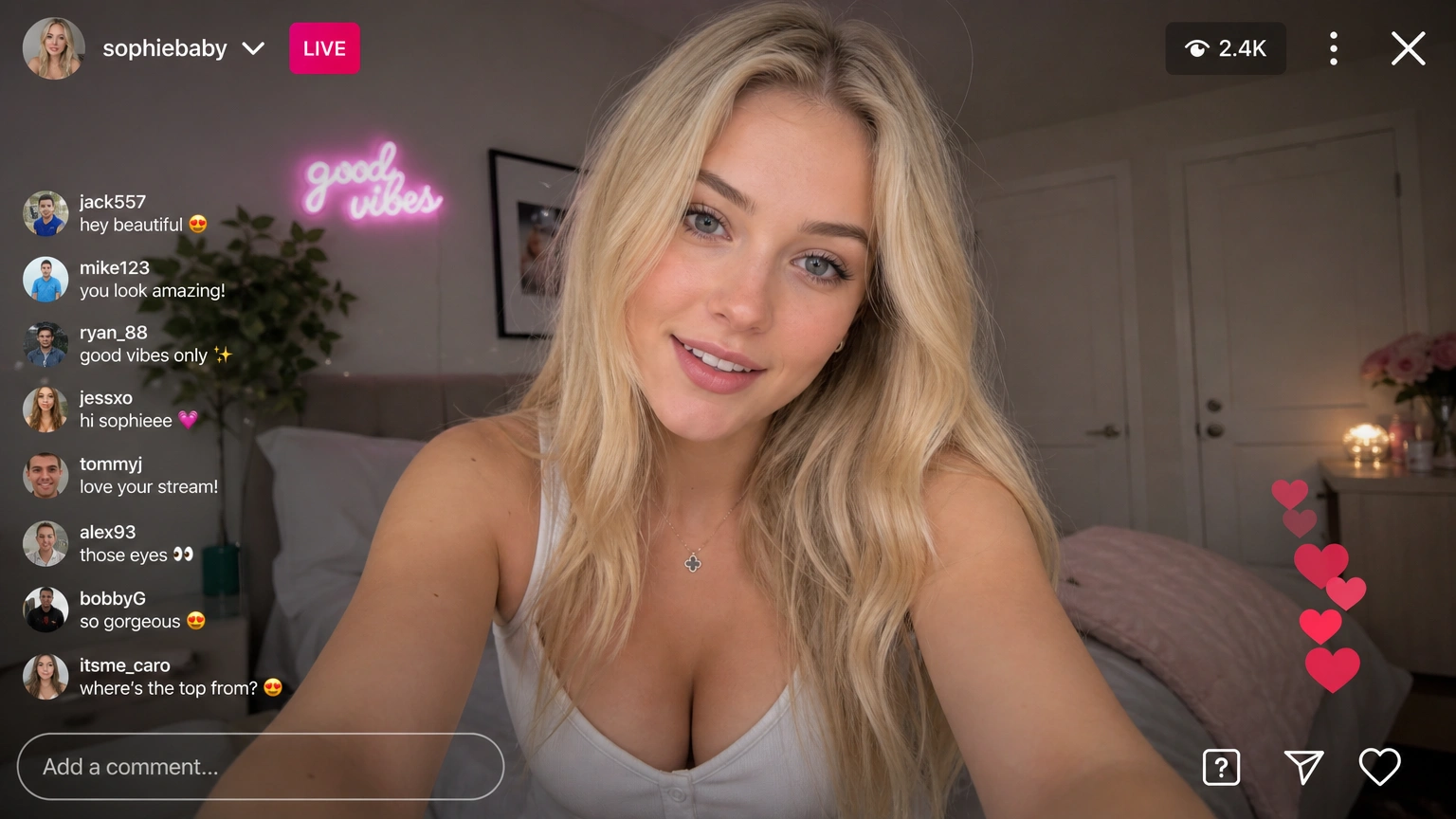
GPT Image 2 — Text-to-Image & Natural-Language EditsFree Online
Write a prompt to generate a new image from scratch, or upload reference photo(s) and describe the edits you want—GPT Image 2 delivers high-quality results you can preview and download.
Built around OpenAI's text-to-image and image-edit workflows.
What Is This GPT Image 2 Workspace?
This GPT Image 2 tool offers two modes: Text to Image for prompt-only generation, and Image Edit for reference-based changes. Pick a mode, describe the outcome in natural language, and run Generate. Outputs appear inline so you can iterate quickly before downloading.
Text to Image
No upload required—describe the scene, style, and mood in text and GPT Image 2 generates a new image from your prompt alone.
Image Edit
Upload one or more reference photos and tell the model what to change—lighting, background, styling, or composition—via natural language.
Mode Selection
Switch between Text to Image and Image Edit in the model picker to match your task—generation from scratch or edits on existing photos.
Credits & Handling
Each run costs a fixed credit amount shown next to Generate. Sign in to see your balance; buy packs on Pricing when you need more.
Why Use GPT Image 2
Fewer tabs, clearer steps—pick a mode, prompt, generate, download—so you stay focused on the image you want.
How to Use GPT Image 2
Three quick steps to results:
Pick Text to Image or Image Edit
Choose Text to Image for prompt-only generation, or Image Edit and upload one or more reference photos.
Describe Your Goal
Write what you want created or changed—subject, style, lighting, background—then confirm the mode fits your task.
Generate & Save
Click Generate, wait for completion, review the preview, and download your PNG when satisfied.
GPT Image 2 Features
Capabilities centered on OpenAI GPT Image 2 text-to-image and reference-based editing—not generic video tooling.
Prompt-Only Generation
Text to Image mode creates new visuals from natural-language prompts—no reference upload required.
Natural-Language Edits
Image Edit mode transforms uploaded photos through plain-language instructions instead of manual masking.
Multi-Reference Edit
Combine up to three reference images when your edit brief benefits from multiple visual sources.
PNG Output
Results suited for sharing or further editing in your usual design tools.
Fixed Credit Cost
Predictable cost per run—see credits required under the Generate button.
Inline Preview
Generated images appear in the workspace player—no hunting through folders mid-session.
GPT Image 2 FAQ
More questions about GPT Image 2? Use the contact options in the site footer.
Ready to Try GPT Image 2?
Jump to the generator above, pick a mode, write a prompt, and generate results—or open Pricing for credits.